

How to Avoid Lighting Glare: A Practical Guide
Table of Contents
- What Causes Lighting Glare (and Why It Matters for Your Eyes)
- How to Reduce Screen Glare from Overhead Lights
- Diffused Lighting vs Direct Lighting: Which One Reduces Glare?
- Best Anti-Glare Light Bulbs for Workspaces and Screens
- Optimizing Your Workstation Layout to Avoid Lighting Glare
- Managing Ambient Room Lighting and Window Glare
- Software-Based Glare Reduction and Display Settings
- Lighting for Video Conferencing vs. Photography: Different Fixes
- Frequently Asked Questions
Last Updated: September 1, 2026
What Causes Lighting Glare (and Why It Matters for Your Eyes)
Lighting glare is the visual discomfort or loss of clarity that occurs when a light source is too bright relative to the surrounding environment, or when light reflects off a surface directly into your eyes. The root cause is almost always the same: the angle of incidence between a light source and a reflective surface sends light straight toward the viewer's eyes.
There are two primary types. Direct glare comes from a light source you can see within your line of sight, such as a bare overhead bulb or an unshielded fixture. Reflected glare, sometimes called veiling glare, bounces off a surface like a monitor, desk, or window before reaching your eyes. Reflected glare from screens is the more common complaint in modern workspaces.
The fix depends on identifying which type you're dealing with. Direct glare requires repositioning the source or shielding it. Reflected glare requires changing the geometry between the source, the reflective surface, and your eyes.
The Ergonomic Health Impact of Chronic Glare
Prolonged exposure to screen glare forces your eyes to work harder to distinguish contrast, causing the ciliary muscles to remain in sustained tension. Over time, this contributes to digital eye strain, presenting as headaches, blurred vision, dry eyes, and neck pain from unconsciously tilting your head to avoid bright spots. According to guidance from the Canadian Centre for Occupational Health and Safety on office ergonomics, poor lighting is one of the leading environmental contributors to workplace discomfort and reduced productivity.
When workers shift their posture to dodge a glare spot on their screen, they create asymmetric loading on the cervical spine. Workstation ergonomics and lighting are inseparable, and treating them as separate problems is where most office setups go wrong.
How to Reduce Screen Glare from Overhead Lights
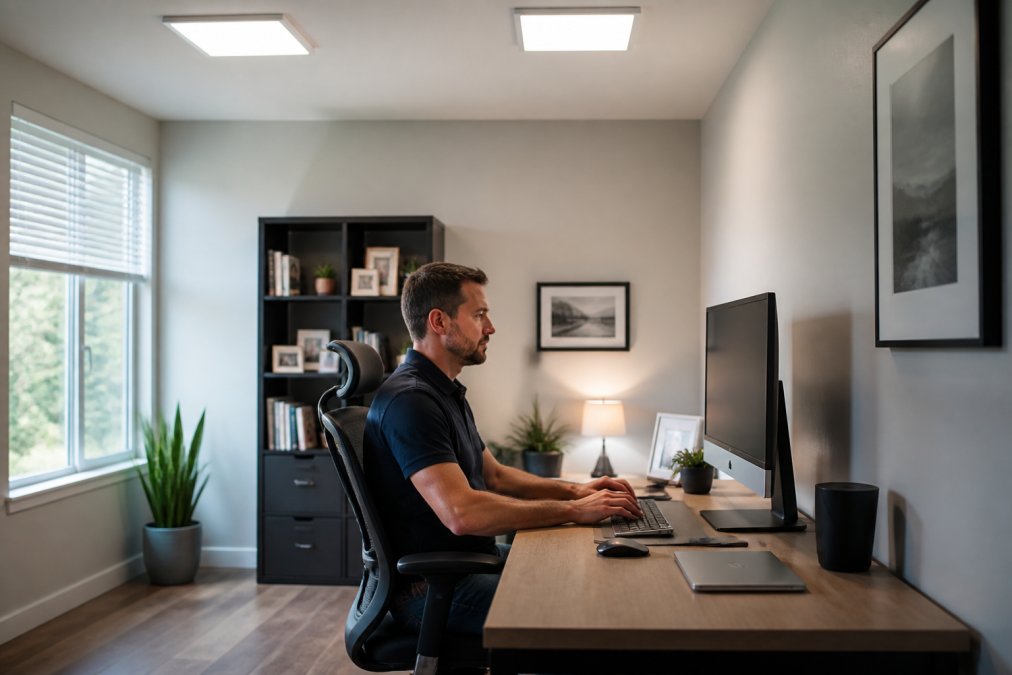
Overhead lights are the most common source of screen glare in both home offices and commercial environments. A ceiling fixture positioned directly above or in front of your monitor creates a reflected hotspot in your line of sight.
The solution is not to turn off the overhead lights, which creates excessive contrast between your bright screen and a dark room, another form of eye strain. The goal is to control the light, not eliminate it.
Repositioning Your Monitor Relative to the Light Source
The single most effective fix for overhead glare is adjusting the monitor's position and tilt:
- Tilt the screen slightly backward (10-20 degrees). This changes the angle of incidence so overhead light reflects downward rather than toward your eyes.
- Move the monitor away from directly beneath a fixture. Position the screen so no light source sits within a 60-degree cone above and in front of it.
- Raise or lower the monitor height. A screen at or slightly below eye level catches less ceiling light than one positioned too low.
- Rotate the desk if necessary. Sometimes the simplest fix is turning the entire workstation 90 degrees so the primary light source hits the side of the screen rather than the face.
Adjusting screen tilt without moving the monitor's horizontal position rarely solves the problem if the fixture is directly overhead.
Adjusting Monitor Brightness and Contrast to Match Ambient Light
Screen glare is a relative problem. A monitor that looks fine in a dim room becomes uncomfortable when you turn on bright overhead lights because the contrast between screen and surroundings drops sharply.
Your monitor brightness should roughly match the brightness of the wall behind it. If the wall looks darker than the screen, the screen is too bright. If it looks brighter, the screen is too dim. Adjust color temperature as well, shift the display toward a warmer color temperature (around 5000-5500K) when working under warm LED ambient light to avoid a jarring visual mismatch.
Diffused Lighting vs Direct Lighting: Which One Reduces Glare?
Diffused lighting wins. Direct lighting concentrates output in a narrow beam, creating bright spots and harsh shadows that amplify screen glare. Diffused lighting spreads the same lumen output across a wider area, reducing peak brightness and softening shadow edges.
Diffusion increases the apparent size of the light source, lowering its luminance per unit area. A larger, lower-luminance source produces far less glare than a small, high-luminance one delivering the same total light.
Using Softboxes, Diffusers, and DIY Budget Modifiers
For professional setups: A dedicated softbox or panel diffuser mounted above the workstation provides even, shadow-free illumination.
For budget-friendly DIY approaches:
- Frosted diffuser film applied to existing LED panel covers softens output significantly without replacing fixtures.
- Translucent fabric stretched over a frame behind a bare bulb creates a functional DIY softbox for under $20.
- Bounce lighting is free. Aim a directional light at a white wall or ceiling and use the reflected light to illuminate the workspace.
Best Anti-Glare Light Bulbs for Workspaces and Screens
The best anti-glare light bulbs are frosted or diffused LED bulbs rather than clear-glass varieties. Clear LED bulbs expose the LED chips directly, creating a high-luminance point source that causes glare. Frosted bulbs scatter the output through the glass, reducing peak luminance and softening the light.
Key specifications to look for:
- Color temperature: 4000-5000K for task areas (neutral white), 2700-3000K for ambient areas
- CRI (Color Rendering Index): 80 or higher for workspaces, 90+ for detail work
- Diffused or frosted finish: Avoid clear-glass LED bulbs in any fixture within your line of sight
- Dimmability: A dimmable bulb gives you direct control over light intensity
According to Natural Resources Canada's guidance on LED lighting efficiency and quality, LED technology now delivers the full range of color temperatures and diffusion options previously only available in fluorescent and incandescent sources, with significantly better efficiency.
Optimizing Your Workstation Layout to Avoid Lighting Glare
Workstation layout is where most glare problems are actually solved. You can have perfect fixtures and still suffer from lighting glare if the desk, monitor, and window are positioned poorly.
Windows and primary light sources should be to the side of your monitor, never in front of it or behind it. A window directly behind your screen makes the display look washed out. A window directly in front of you means you're looking toward a bright source while trying to read a screen.
Position the monitor perpendicular to windows. Keep the monitor at least 50-60 cm from your eyes. Ensure no light source is visible in your peripheral vision within the screen plane. Use blackout curtains or adjustable blinds on windows that cannot be repositioned relative to the desk.
Indirect Lighting Strategies and Backlighting Your Screen
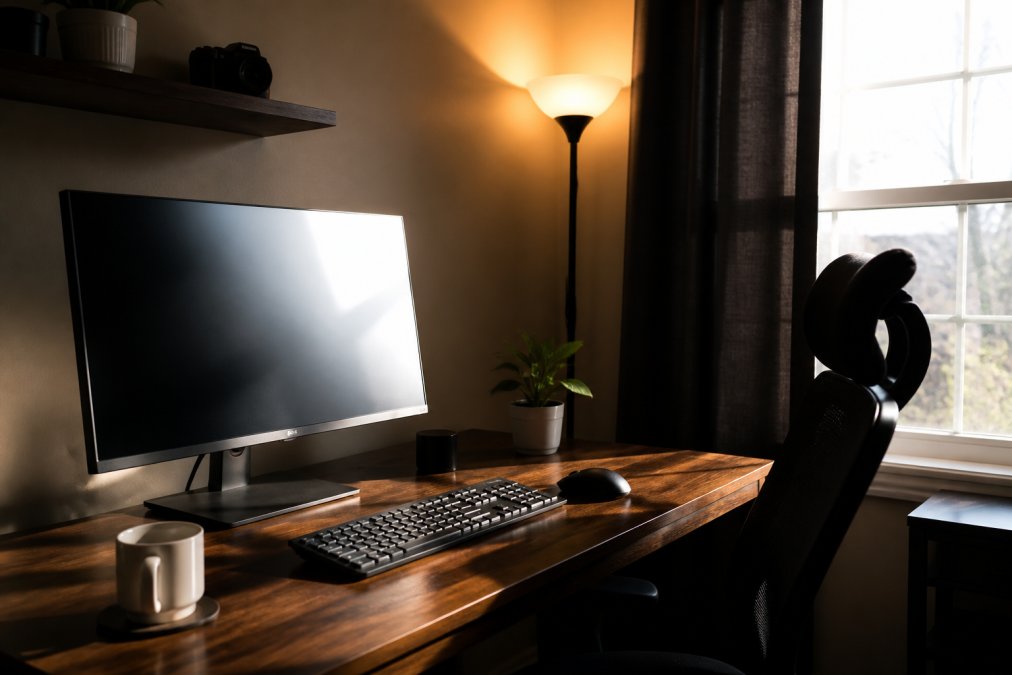
Indirect lighting means the fixture never points directly at the work surface or the occupant. Light is aimed at walls or ceilings and reflected back into the room. This approach virtually eliminates direct glare because the actual light source is never in your line of sight.
Backlighting your monitor is a complementary technique. LED strips mounted behind the screen raise the ambient brightness of the area surrounding the display, reducing the contrast ratio between the bright screen and the darker room. A color temperature of 6500K behind the screen matches most display white points well.
Lighting Tips for Glasses Wearers
Glasses wearers face a compounding problem: the lenses introduce additional reflective surfaces between the light source and the eye.
Practical fixes:
- Anti-reflective (AR) coating on lenses is the single most effective intervention, eliminating most lens reflections at the source.
- Tilt the screen upward slightly so overhead light reflects below the line of sight rather than toward the face.
- Lower light intensity overall and rely on task lighting positioned to the side rather than overhead.
- Matte finish screens reduce the double-reflection problem that glossy displays create.
Managing Ambient Room Lighting and Window Glare
Ambient light management requires controlling every light source in the room, not just the one directly above your desk. Window glare is particularly difficult because the source is variable and powerful.
Layer multiple controls:
- Blackout curtains for windows facing the primary work area give complete control.
- Diffusing sheer curtains scatter direct sunlight into soft ambient light without blocking it.
- Adjustable blinds with horizontal slats redirect light toward the ceiling (indirect) rather than into the room at eye level.
- Polarizing filters on windows reduce glare from reflective outdoor surfaces.
For overhead lighting, dimmer switches give you real-time control over light intensity as ambient conditions change. According to the Illuminating Engineering Society of North America's lighting design resources, the recommended illuminance for general office tasks is 300-500 lux, but uniformity is more important: consistent lighting throughout the space causes less eye strain than a slightly lower overall level with bright spots and dark areas.
Software-Based Glare Reduction and Display Settings
Hardware changes solve most lighting glare problems. Software-based tools add a useful layer of control when you cannot change the physical environment.
Operating system display settings:
- Night mode / warm shift: Reduces the blue-light component of the display, lowering perceived brightness and improving comfort in low-light environments.
- Adaptive brightness: The display adjusts its brightness based on ambient light sensors, keeping the screen-to-room contrast ratio stable as conditions change.
- Reduce white point: Lowers the maximum brightness ceiling, useful when minimum brightness is still too intense.
Third-party tools allow finer control over color temperature and brightness than the operating system provides, with scheduled transitions that gradually shift the display toward warmer tones as the day progresses.
Lighting for Video Conferencing vs. Photography: Different Fixes
The fix for lighting glare on a personal workstation is not the same as the fix for a video call setup or a photography environment.
Video conferencing: The priority is illuminating your face evenly for the camera while keeping glare off your screen. A key light positioned at roughly 45 degrees to one side, slightly above eye level, provides flattering face illumination. A fill light on the opposite side at lower intensity reduces harsh shadows. Both should be diffused. Reduce the screen brightness to avoid washing out your face in the camera feed.
Photography and video production: The goal is controlling light precisely for the subject being captured. Softboxes, diffusers, and light modifiers are standard tools. The photographer's own screen glare is managed separately, typically through a monitor hood or by positioning the editing station away from the shooting area.
The key difference: Video conferencing requires you to be both the subject and the operator simultaneously. A video call setup needs to solve for face lighting and screen comfort at the same time, which requires careful positioning of the key light so it illuminates your face without creating a reflection on the monitor behind you.
For anyone building a dedicated home studio or conference room setup, Alberta LED Lights & Electrical Supplies carries a range of LED lighting solutions suited to both applications, with options across color temperatures and diffusion types to match the specific requirements of your space.
Managing lighting glare effectively comes down to understanding three things: where your light sources are, what surfaces they're reflecting off, and what angle that reflection takes relative to your eyes. The workstation ergonomics, the fixture choice, and the ambient room conditions all interact. Getting one right while ignoring the others rarely solves the problem completely. If you're sourcing LED fixtures, diffusers, or control components for a workspace retrofit, the team at Alberta LED Lights & Electrical Supplies can help you identify the right products for your specific setup and project requirements.
Frequently Asked Questions
How can I reduce glare from my ceiling lights?
Switch to diffused or frosted bulbs that scatter light rather than projecting it in a single beam. Adding a fabric diffuser or a shade to overhead fixtures softens the output significantly. Repositioning your workstation so overhead lights fall to the side rather than directly in your line of sight also cuts direct glare. LED panels with a matte finish and a color temperature around 4000K produce even, shadow-free light that is far less likely to cause eye strain than bare bulbs or exposed tube fixtures.
What is the best lighting temperature to reduce eye strain?
For most desk and screen work, a color temperature between 3500K and 4500K offers the best balance of visual comfort and alertness. Warm white (2700K-3000K) suits relaxed evening use but can make screens look washed out. Cool white above 5000K increases contrast but can feel harsh over long sessions. Pair your chosen color temperature with adequate light intensity so your monitor brightness and ambient light level are close to equal, a big mismatch between the two is a leading cause of eye strain regardless of color temperature.
How do I reduce glare naturally without buying new fixtures?
Start by repositioning your monitor so no light source sits directly behind or in front of it from your line of sight. Hang sheer curtains or partially close blinds to diffuse incoming sunlight without blocking it entirely. Blackout curtains work well for afternoon sun. A piece of white card or foam board placed near a lamp acts as a DIY fill light reflector, softening shadows without adding a new light source. Tilting your monitor slightly downward also reduces the angle of incidence at which overhead light hits the screen.
Do anti-glare coatings on glasses actually help with screen glare?
Anti-glare coatings on lenses reduce reflections on the back surface of the lens, which otherwise bounce light directly into your eye. They do not eliminate glare from the screen itself, but they improve overall visual comfort noticeably during long screen sessions. For glasses wearers, combining an anti-glare lens coating with proper light placement, key light to the side rather than behind the monitor, and a matte screen filter addresses glare from both directions and produces the most consistent improvement in comfort.